1. Getting started
CounselBilling is a cloud-based fee book for advocates and independent legal consultants. It runs in your browser at counselbilling.com — nothing to install, and it works wherever you are.
To begin:
- Go to counselbilling.com and click Start your 30-day free trial (no card required, cancel anytime).
- Sign in. You'll land on the Dashboard, your practice at a glance.
- Use the sidebar on the left to move between the main areas of the app:
- Dashboard — key figures and recent activity
- Activities — time entries and disbursements across all matters
- Clients — the attorney firms you bill
- Matters — case files and their billing
- Invoices — draft, send, and track payment
- Reports — age analysis, statements, payments, and overdue follow-up
- Settings — your practice details and defaults
Before you capture your first fee, spend two minutes in Settings — everything you enter there flows automatically onto every invoice.
2. Setting up your practice (Settings)
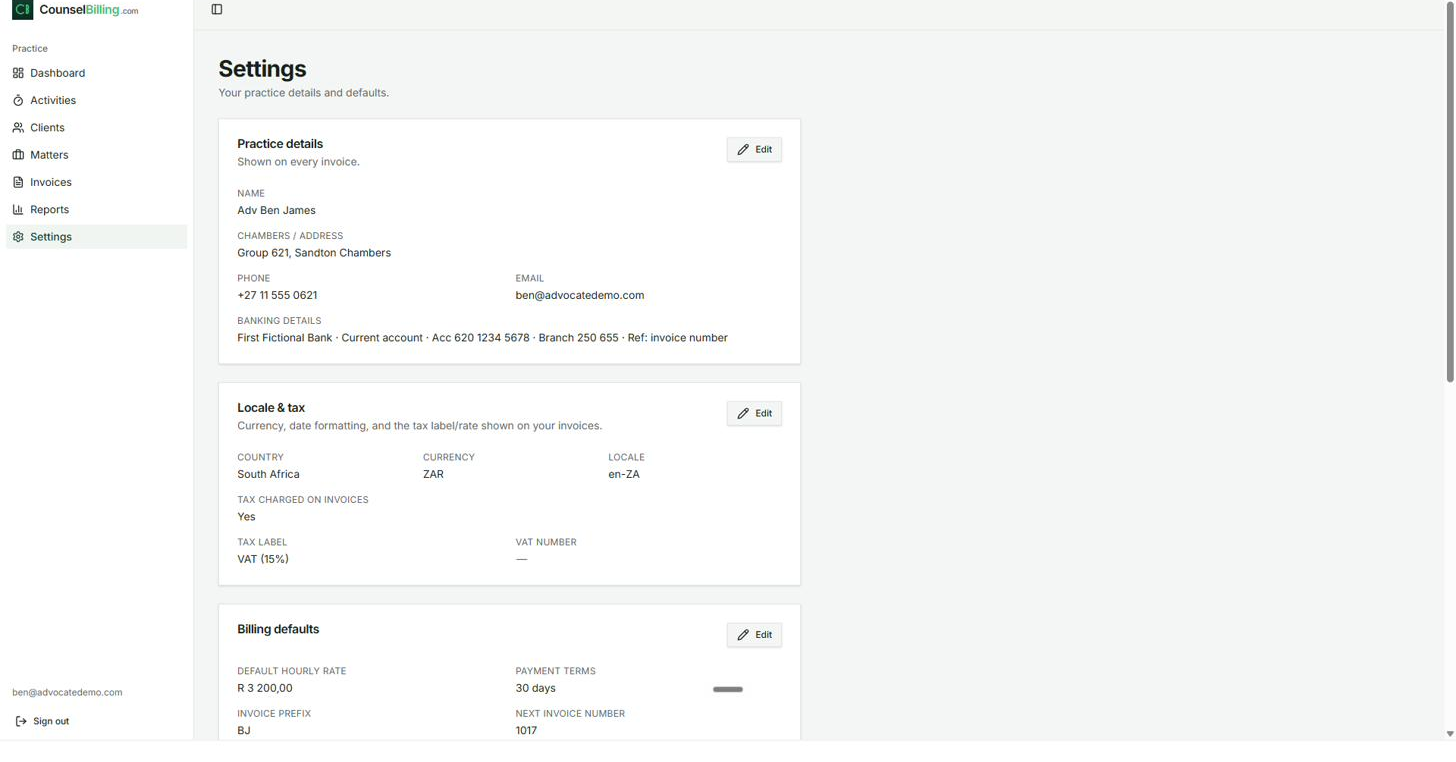
Open Settings in the sidebar. This page holds your practice details and defaults, arranged in cards. Click Edit on any card to change it.
2.1 Practice details
These appear on every invoice, so get them right once and forget about them.
- Name — e.g. Adv Ben James
- Chambers / Address — e.g. Group 621, Sandton Chambers
- Phone and Email
- Banking details — bank, account type, account number, branch code, and payment reference instruction (e.g. Ref: invoice number). These print in the footer of every invoice and statement.
2.2 Locale & tax
Controls currency, date formatting, and the tax label/rate shown on your invoices.
- Country (e.g. South Africa), Currency (e.g. ZAR), and Locale (e.g. en-ZA)
- Tax charged on invoices — Yes/No
- Tax label — e.g. VAT (15%). The label and rate you set here appear on every invoice's totals block.
- VAT number — if you are VAT-registered, enter it here so it appears on your tax invoices.
2.3 Billing defaults
- Default hourly rate — the rate used when no client- or matter-specific rate applies (e.g. R 3 200,00).
- Payment terms — e.g. 30 days. The invoice due date is calculated from this automatically.
- Invoice prefix — e.g. BJ. Your invoices will be numbered BJ-1001, BJ-1002, and so on.
- Next invoice number — where the sequence starts or continues. Numbering is sequential and managed for you; you never have to remember what the last number was.
3. Inviting a secretary (Team)
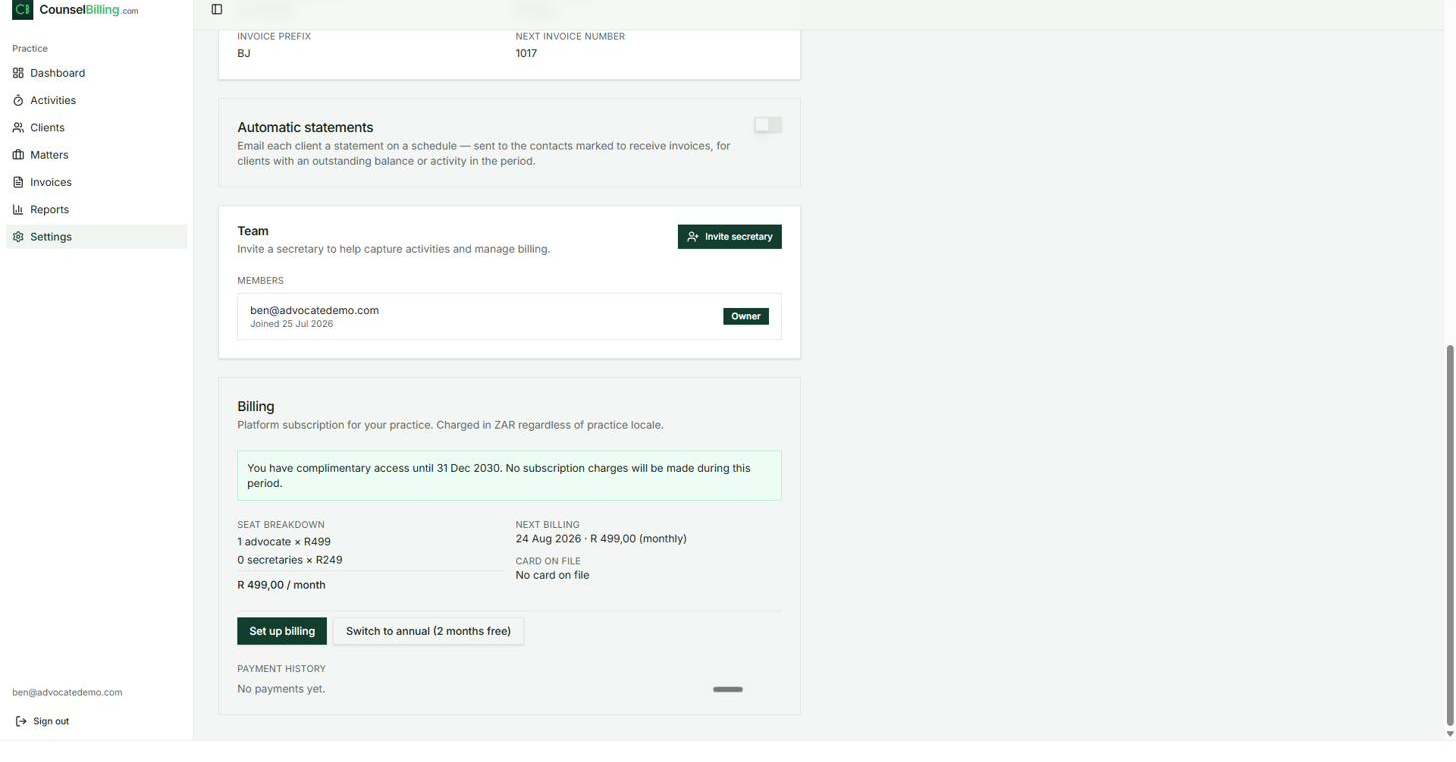
CounselBilling is built for the way an advocate's practice actually runs: a secretary can capture activities and manage billing, while you supervise from anywhere.
- Go to Settings and scroll to the Team card.
- Click Invite secretary and enter their email address.
- They receive an invitation, accept it, and appear under Members alongside you (the Owner).
Members are listed with their join date and role, so you can always see who has access to your practice.
4. Your subscription (Billing)
The Billing card in Settings shows your platform subscription (this is what you pay CounselBilling — not what your clients pay you).
- Seat breakdown — priced per role: advocates at R499/month each and secretaries at R249/month each, charged in ZAR.
- Next billing date and amount.
- Card on file — click Set up billing to add a payment card.
- Switch to annual — pay yearly and get 2 months free.
- Payment history — a record of every subscription payment.
5. Adding clients (attorney firms)
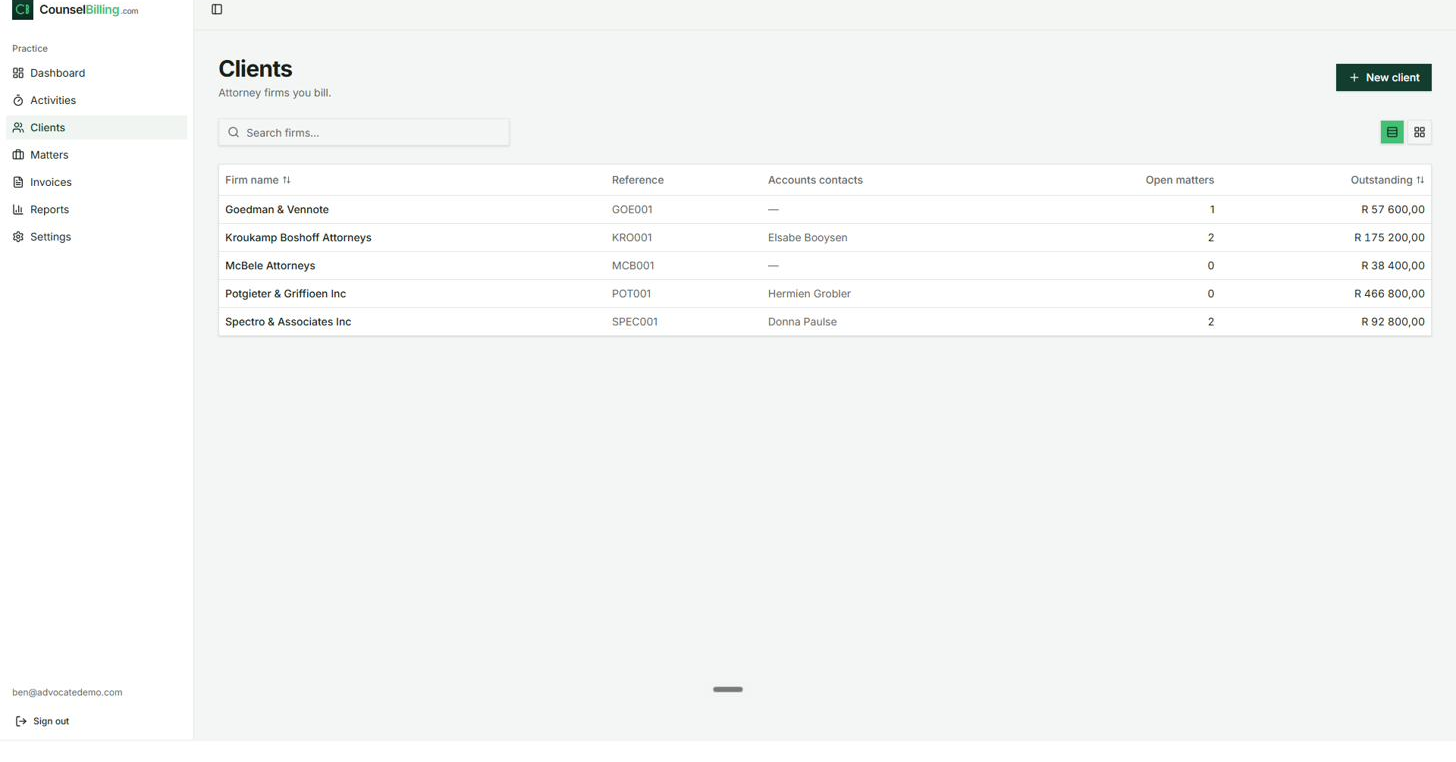
In CounselBilling, a client is the attorney firm that briefs you. Open Clients in the sidebar.
The client list shows, for each firm: the firm name, your reference code (e.g. GOE001), the accounts contact, the number of open matters, and the total outstanding balance — so you can see at a glance which firm owes you what.
To add a client
- Click + New client.
- Enter the firm name and address (these appear in the Bill to block of your invoices).
- Assign a short reference code — it prints on invoices and statements (e.g. Ref GOE001).
- Add contacts:
- Accounts contact — the person in the firm's accounts department. They are automatically included as a recipient on every invoice for this firm.
- Firm-wide recipients — anyone who should receive all invoices for this firm regardless of matter.
Use the search box to find a firm quickly, and the view toggle (top right) to switch between list and card layouts.
6. Creating and managing matters
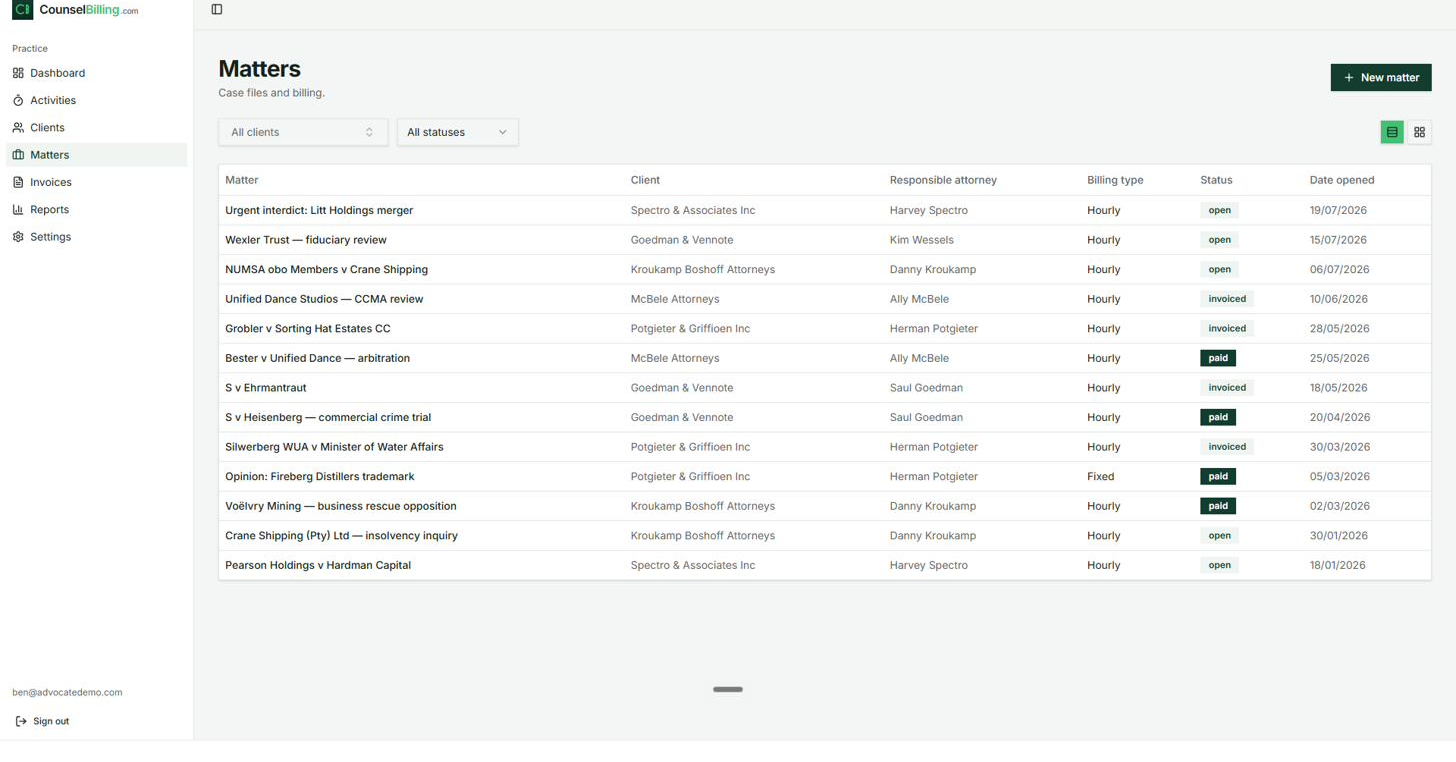
A matter is a single brief or case file. Open Matters in the sidebar to see every matter with its client, responsible attorney, billing type, status (open / invoiced / paid), and date opened. Filter by client or status using the dropdowns.
6.1 Creating a matter
- Click + New matter.
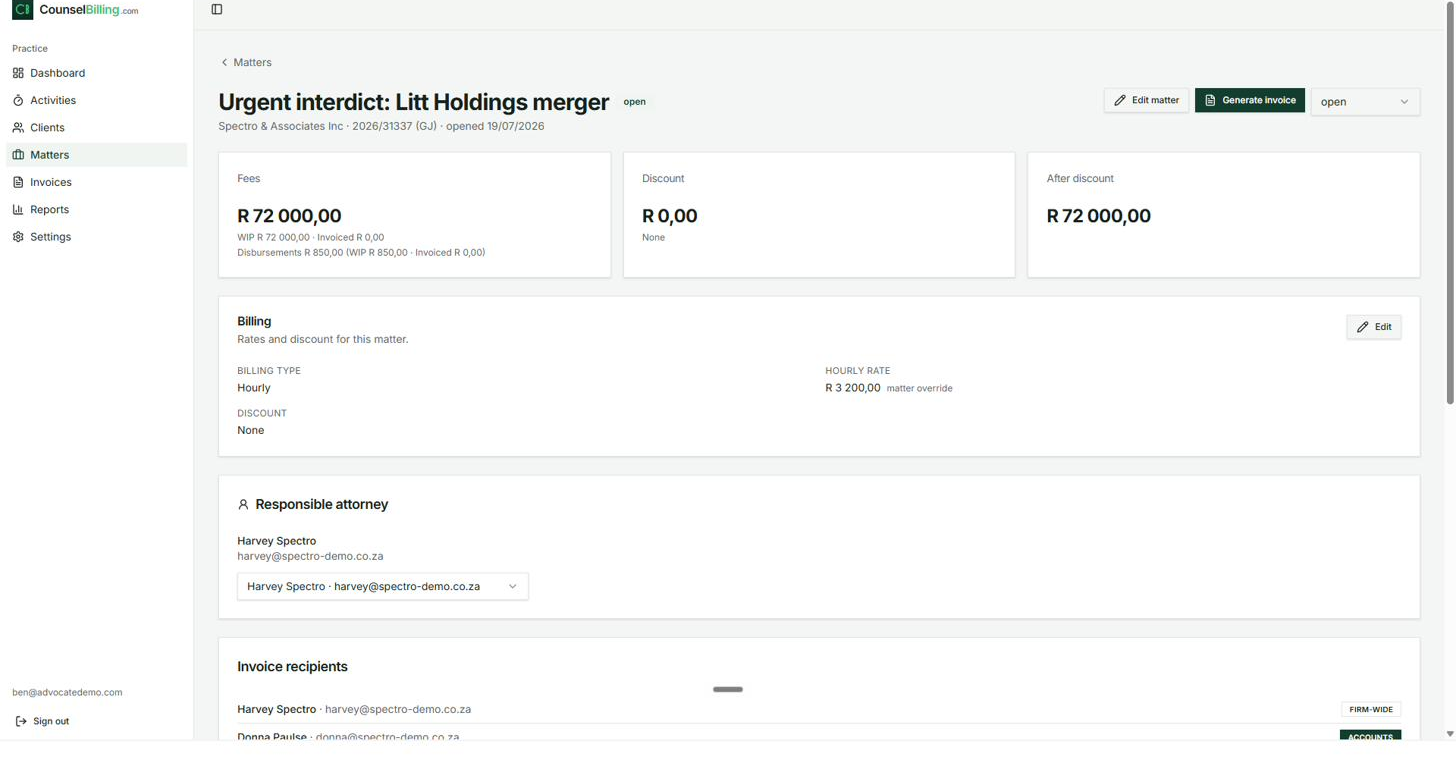
- Give the matter a name (e.g. Urgent interdict: Litt Holdings merger), select the client firm, and add the case/reference number (e.g. 2026/31337 (GJ)) and date opened.
- Choose the responsible attorney — the attorney at the firm who briefed you. They're always included on invoices for this matter.
- Optionally add a description of the work (e.g. Urgent application to interdict implementation of merger pending arbitration).
6.2 Billing type and rates
Each matter has its own Billing card:
- Billing type — Hourly or Fixed.
- Hourly rate — the rate cascades: your practice default applies unless the client has a firm rate, and a matter override beats both. The matter page labels the source of the rate so you always know which one is in effect.
- Discount — apply a matter-level discount if agreed; the matter header shows Fees, Discount, and After discount side by side.
6.3 The matter at a glance
The top of each matter page summarises the money:
- Fees — total fees on the matter, split into WIP (work in progress, not yet invoiced) and Invoiced.
- Disbursements — with the same WIP/Invoiced split.
- After discount — the net position.
This is your unbilled-time number, per matter, in Rands — the value of work you've done but not yet billed.
6.4 Invoice recipients
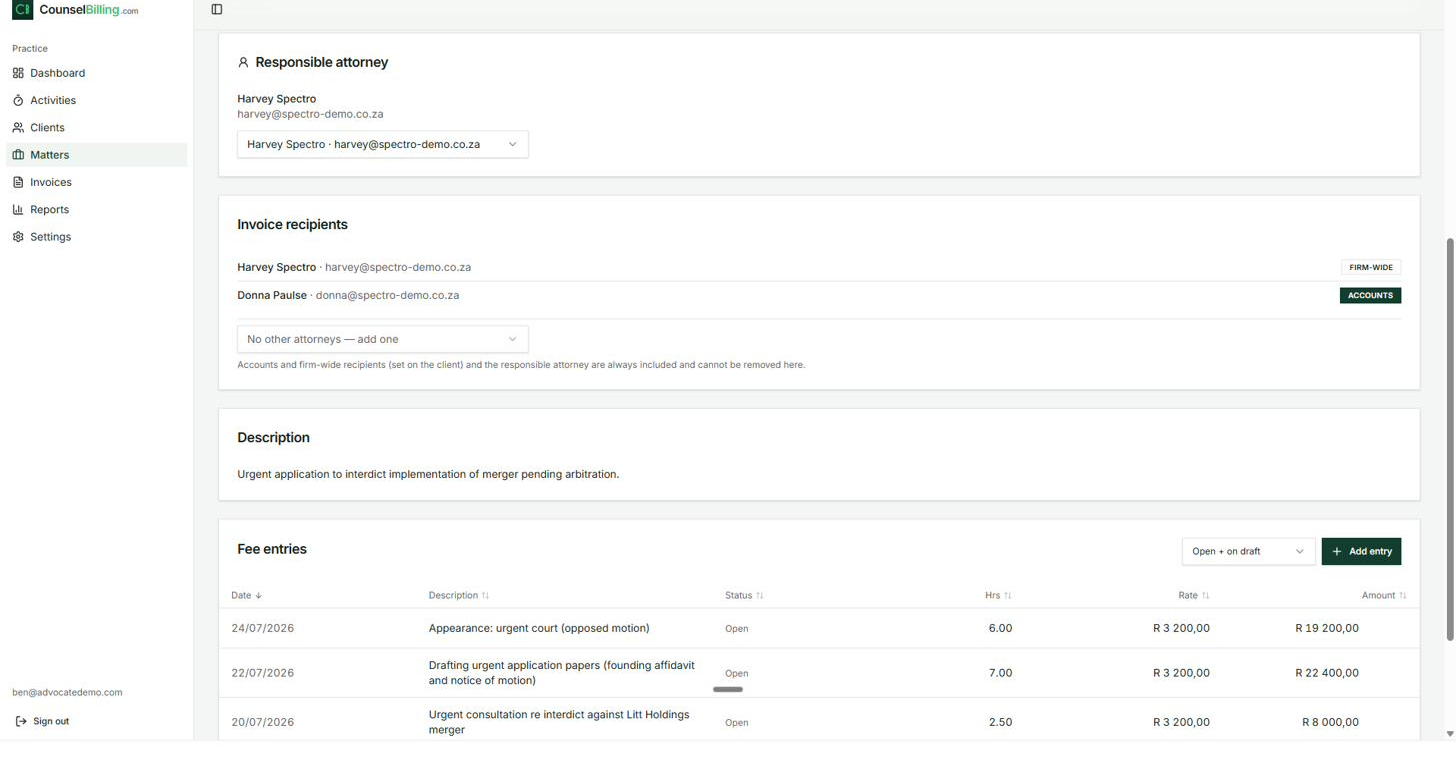
The Invoice recipients card lists everyone who will receive invoices for this matter:
- The responsible attorney and the client's accounts and firm-wide contacts are always included and cannot be removed here (badges show why each is on the list).
- Use the dropdown to add other attorneys at the firm for this matter only.
6.5 Fee entries and disbursements on the matter
Further down the matter page you'll find the Fee entries and Disbursements tables — every time entry and expense on this matter, with date, description, status (open / on draft / invoiced), hours, rate, and amount. You can add entries directly here (see the next section) or from the Activities page.
7. Capturing time and disbursements (Activities)
There are two places to capture work: on the matter page (via + Add entry / + Add disbursement) or on the Activities page, which shows everything across all matters. Both feed the same fee book.
7.1 Adding a fee entry (time)
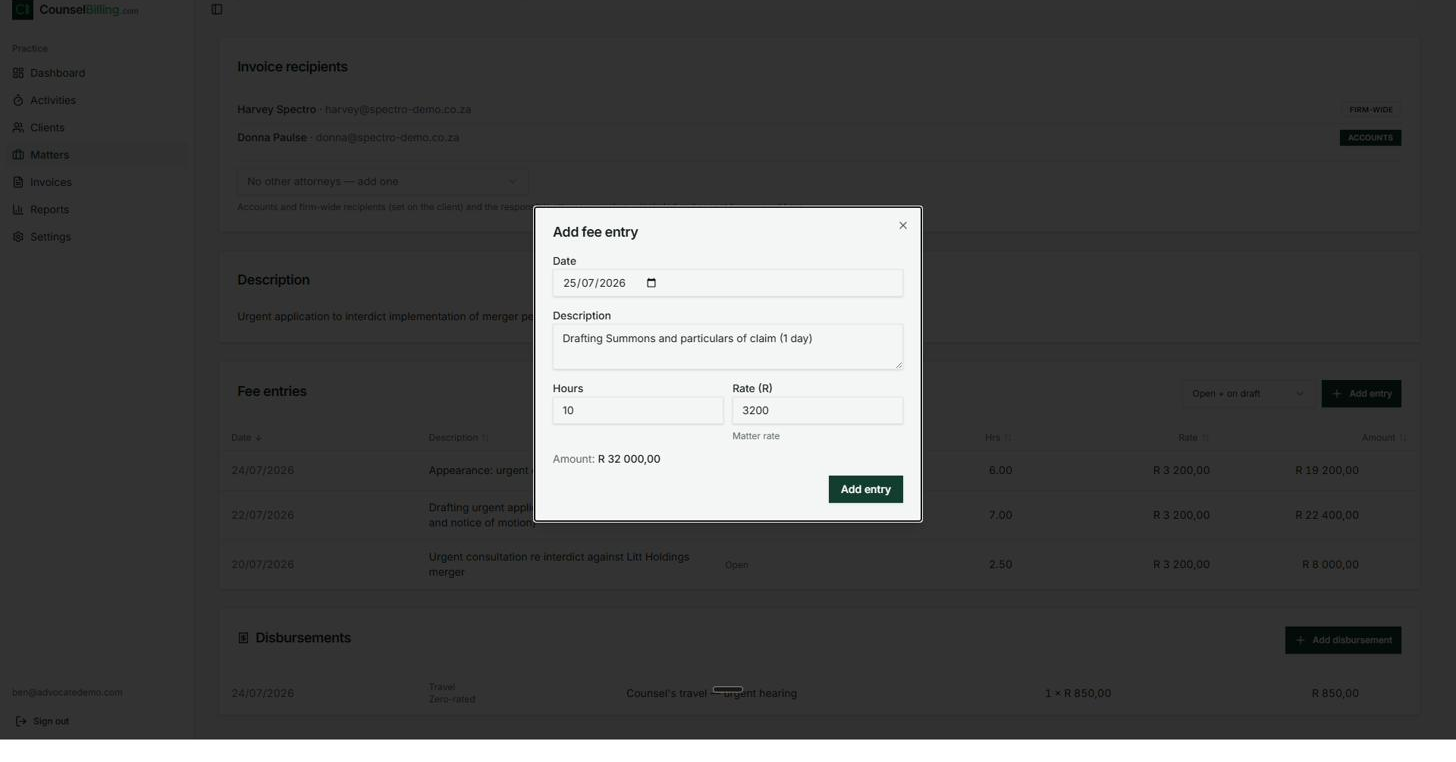
- On a matter, click + Add entry (or on Activities, use the quick-capture row with the Time tab selected).
- Fill in:
- Date
- Description — e.g. Drafting Summons and particulars of claim (1 day)
- Hours — e.g. 10
- Rate (R) — pre-filled from the matter rate (labelled Matter rate); change it for this entry only if needed.
- The Amount calculates live as you type (e.g. 10 × R 3 200 = R 32 000,00).
- Click Add entry. The entry appears with status Open — ready to be invoiced.
7.2 Adding a disbursement (expense)
- Click + Add disbursement on the matter (or select the Disbursement tab on Activities).
- Enter the date, a category (e.g. Travel), a description (e.g. Counsel's travel — urgent hearing), quantity, and unit amount.
- Mark the VAT treatment where relevant — e.g. Zero-rated / VAT-exempt — so it's totalled correctly on the invoice.
7.3 Working in the Activities view
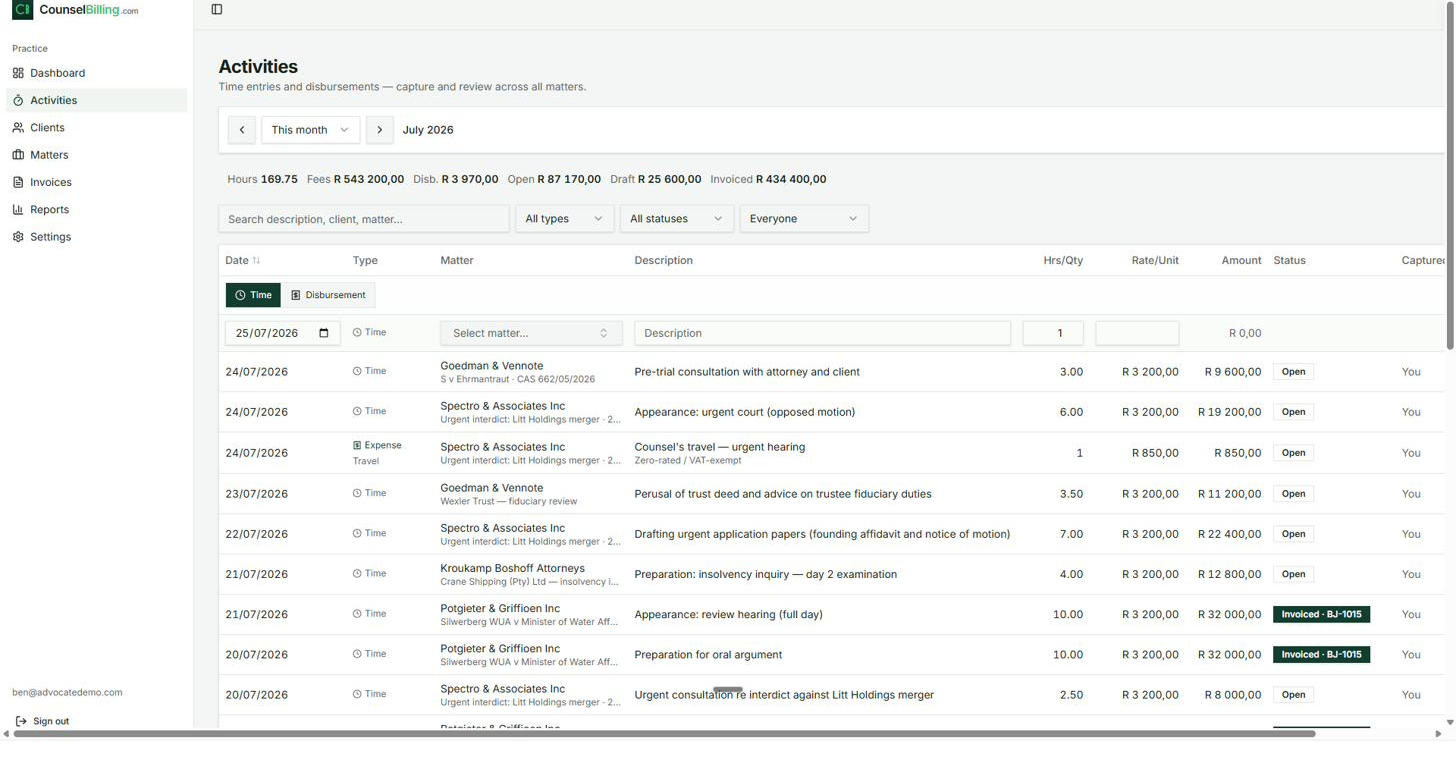
The Activities page is the practice-wide ledger of time and expenses:
- The header totals the period: Hours, Fees, Disbursements, and the split between Open, Draft, and Invoiced amounts.
- Navigate periods with the arrows (e.g. This month · July 2026).
- Filter by search text, type (time/disbursement), status, and who captured it (useful when a secretary captures on your behalf — the Captured column shows who entered each item).
- Entries that have been billed show an Invoiced badge with the invoice number (e.g. Invoiced · BJ-1015), so you can trace any entry to its invoice.
8. Generating an invoice from a matter
When you're ready to bill a matter:
- Open the matter and click Generate invoice.
- CounselBilling pulls in the matter's open fee entries and disbursements, applies the correct rate and any discount, calculates VAT per your settings, and assigns the next sequential invoice number (e.g. BJ-1018).
- The invoice is created as a Draft — nothing is sent yet. Review it, then move it through the lifecycle below.
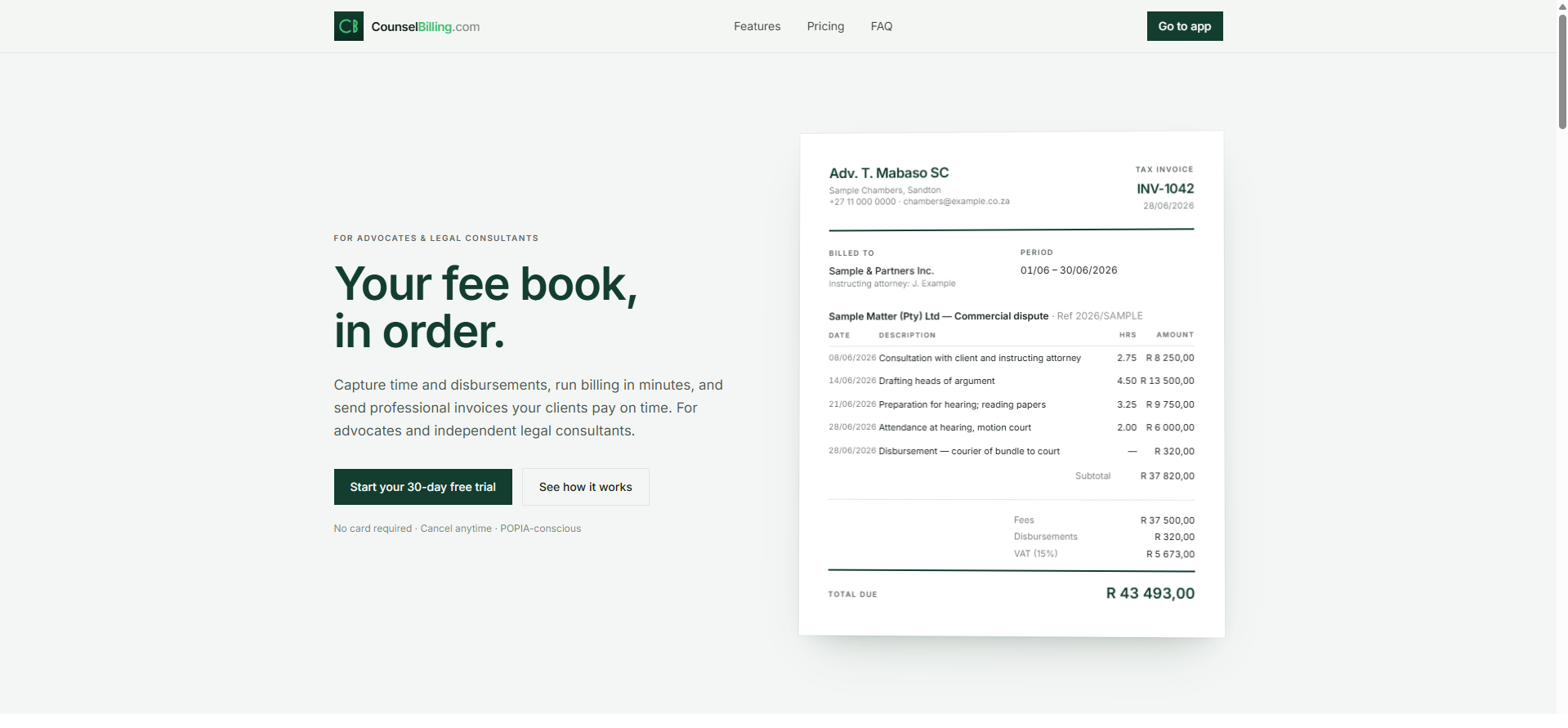
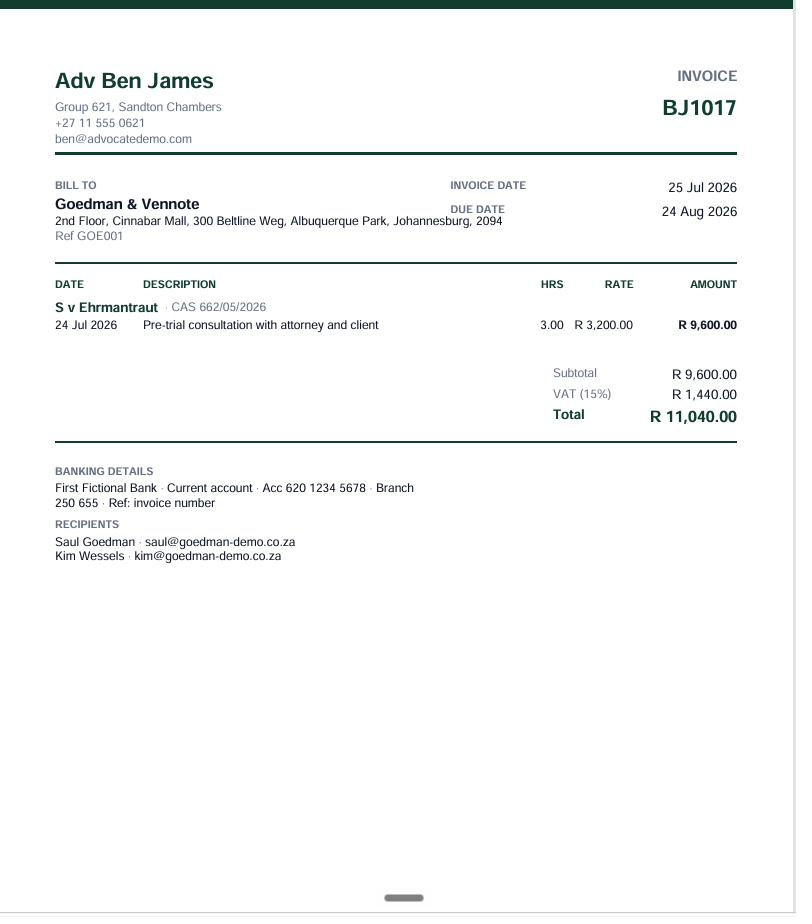
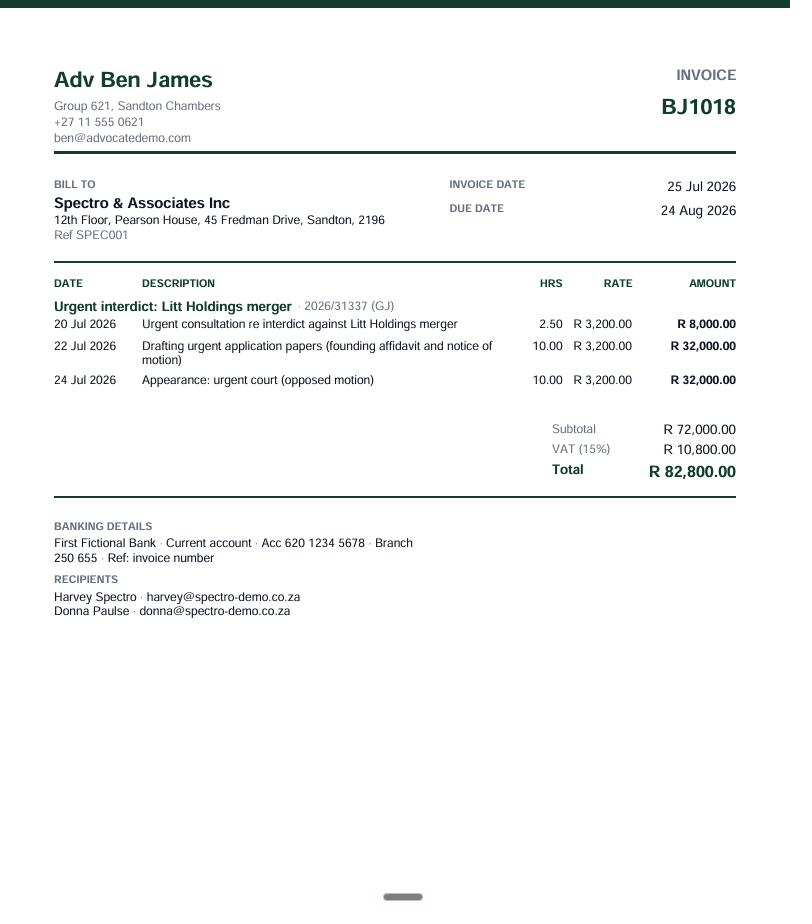
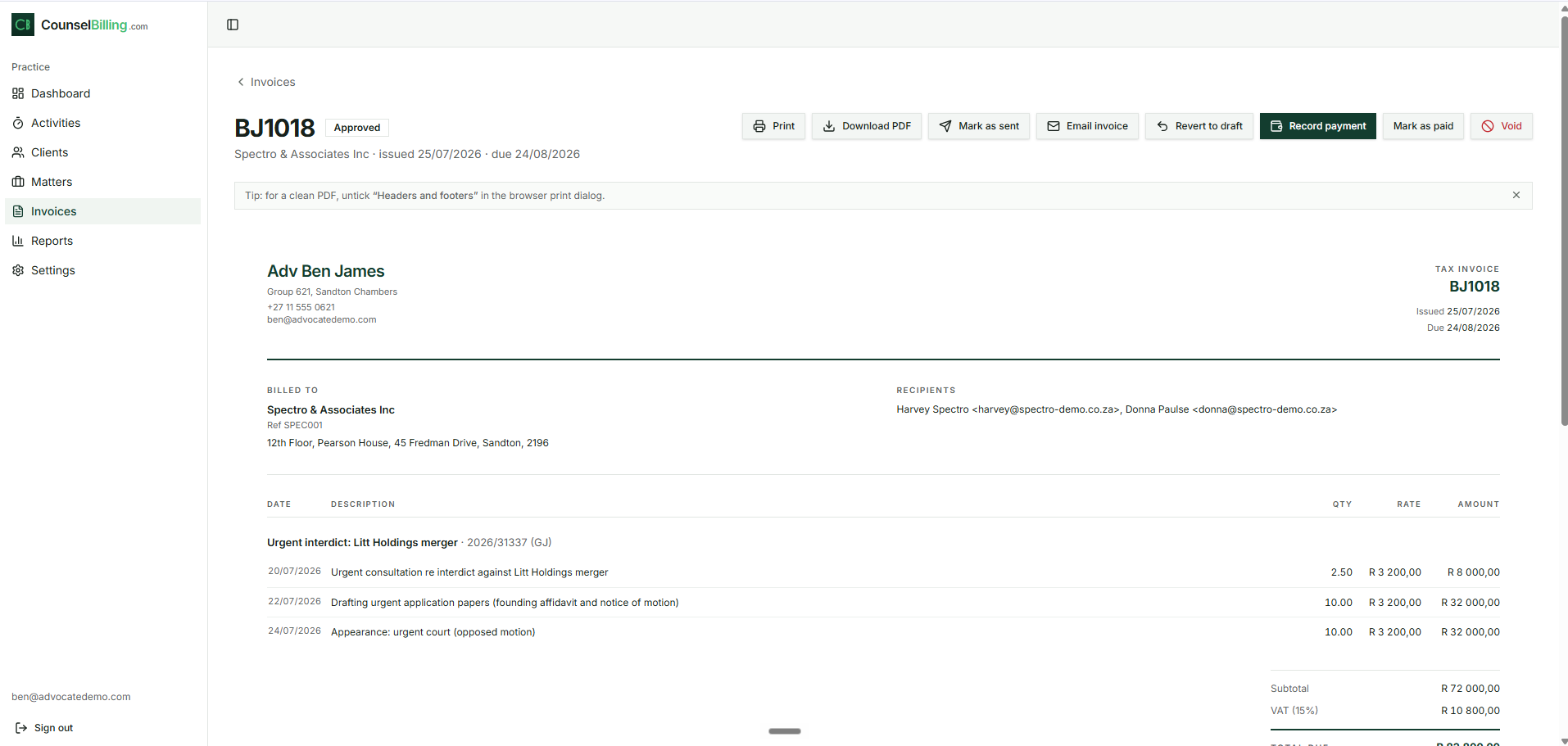
The invoice document itself is clean and professional: your practice details at the top, the Bill to firm with your reference, the invoice and due dates, the matter heading with its case number, dated line items with hours/rate/amount, and the totals block (Subtotal, VAT, Total due), with your banking details and the recipients listed at the bottom.
9. The invoice lifecycle
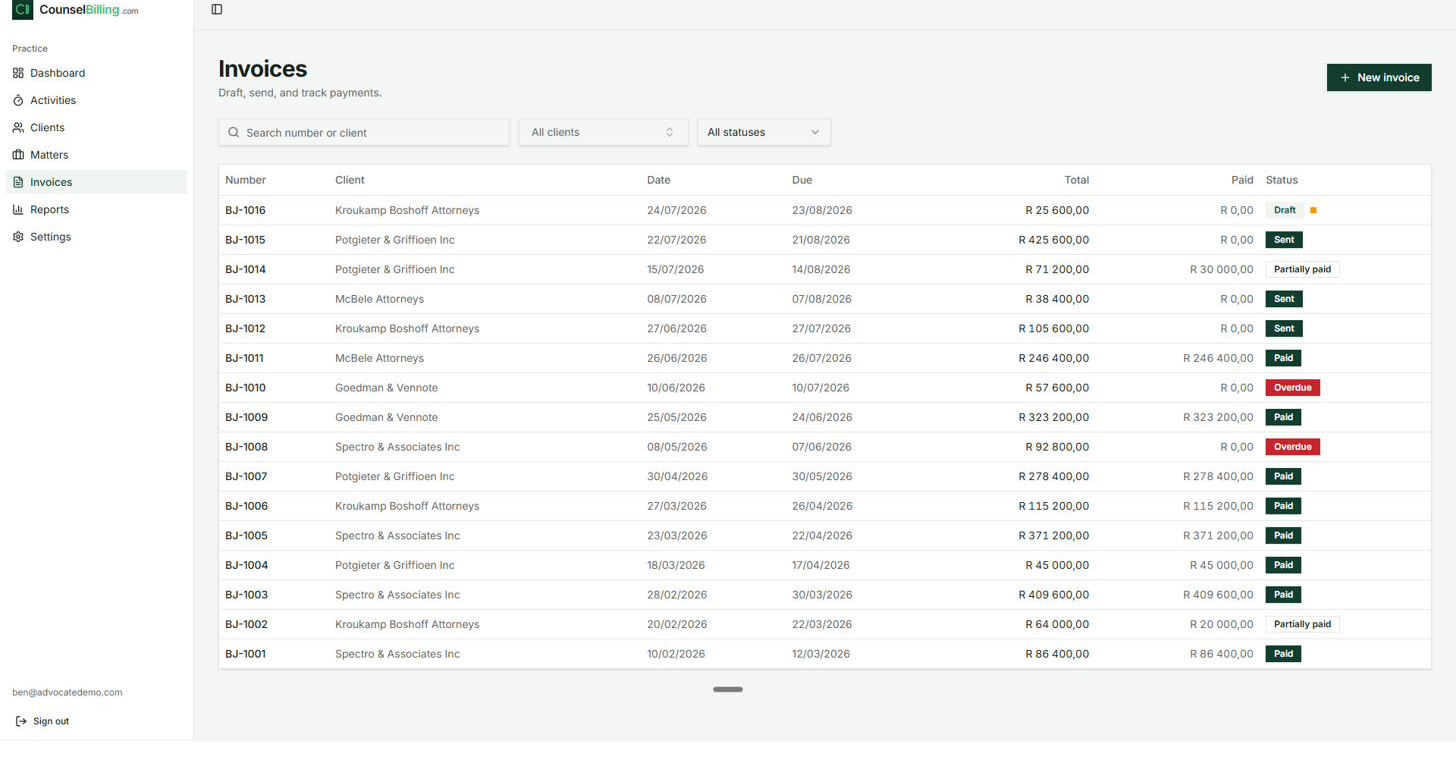
Open Invoices in the sidebar for the full register: number, client, date, due date, total, amount paid, and status. Search by number or client, and filter by client or status.
An invoice moves through these statuses:
| Status | Meaning |
|---|---|
| Draft | Created but not finalised. Still editable. |
| Approved | Finalised and ready to send. |
| Sent | Emailed or delivered to the client. The clock on payment terms is running. |
| Partially paid | Some payment received; balance still outstanding. |
| Paid | Settled in full. |
| Overdue | Past its due date and not fully paid. Flagged automatically. |
| Void | Cancelled. |
Actions on an invoice
Open any invoice to see the full document plus an action bar:
- Print — print directly from the browser. Tip: untick "Headers and footers" in the browser print dialog for a clean page.
- Download PDF — a PDF fee note to save or attach.
- Mark as sent — if you delivered it outside the app.
- Email invoice — send it to the matter's recipients directly from CounselBilling.
- Revert to draft — pull it back for corrections before it's paid.
- Record payment — see the next section.
- Mark as paid — settle it in one click when full payment arrives.
- Void — cancel the invoice.
10. Recording payments
When money arrives:
- Open the invoice and click Record payment.
- Enter the amount, date, method (e.g. EFT), and the bank reference (e.g. GOE-EFT-5512).
- The invoice status updates automatically — Partially paid if there's a balance, Paid if settled — and the payment appears in the Dashboard's recent activity and in the Payments received report.
Partial payments are handled naturally: the register shows the total, the amount paid, and the status side by side (e.g. R 71 200,00 total, R 30 000,00 paid, Partially paid).
11. The Dashboard
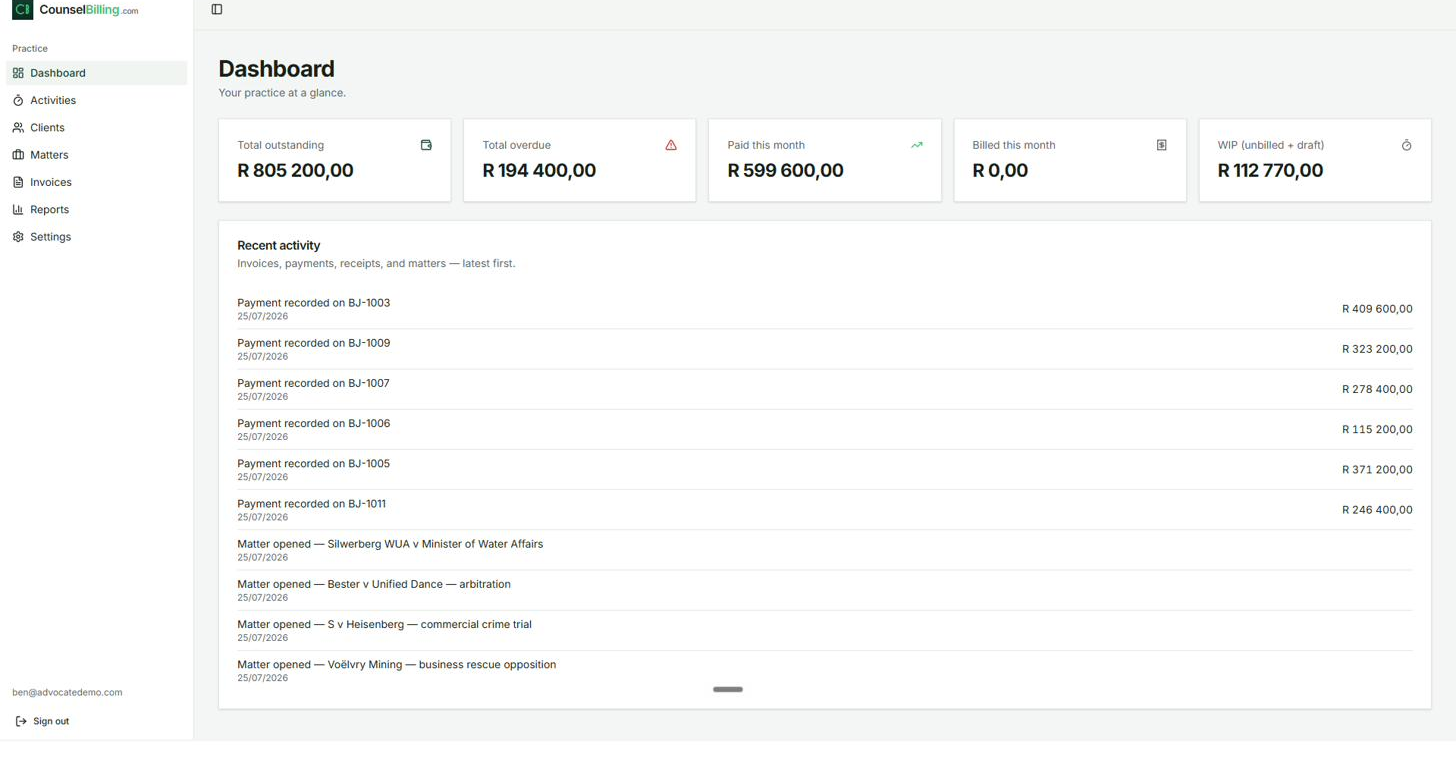
The Dashboard is your practice at a glance — the first screen after sign-in:
- Total outstanding — receivables across all clients.
- Total overdue — the portion past due date.
- Paid this month — cash received.
- Billed this month — invoices raised.
- WIP (unbilled + draft) — the value of work done but not yet billed. This is the number that lets you plan: what's genuinely coming to you before a single fee note goes out.
Below the cards, Recent activity lists invoices, payments, receipts, and matters — latest first — so you can supervise everything that's happened without opening each record.
12. Reports
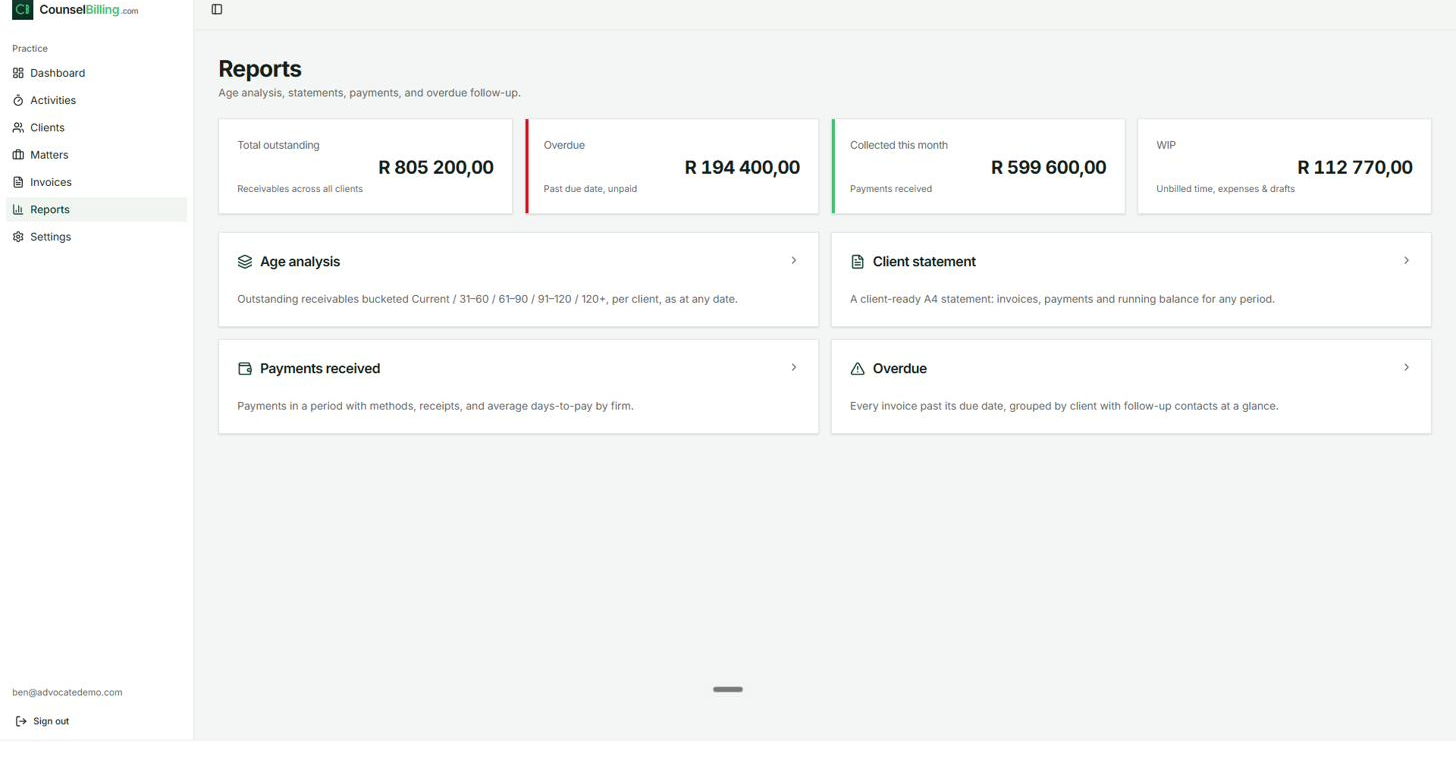
Open Reports for four purpose-built reports, each with Print and Export CSV buttons. The Reports landing page also repeats the headline cards (Total outstanding, Overdue, Collected this month, WIP).
12.1 Age analysis
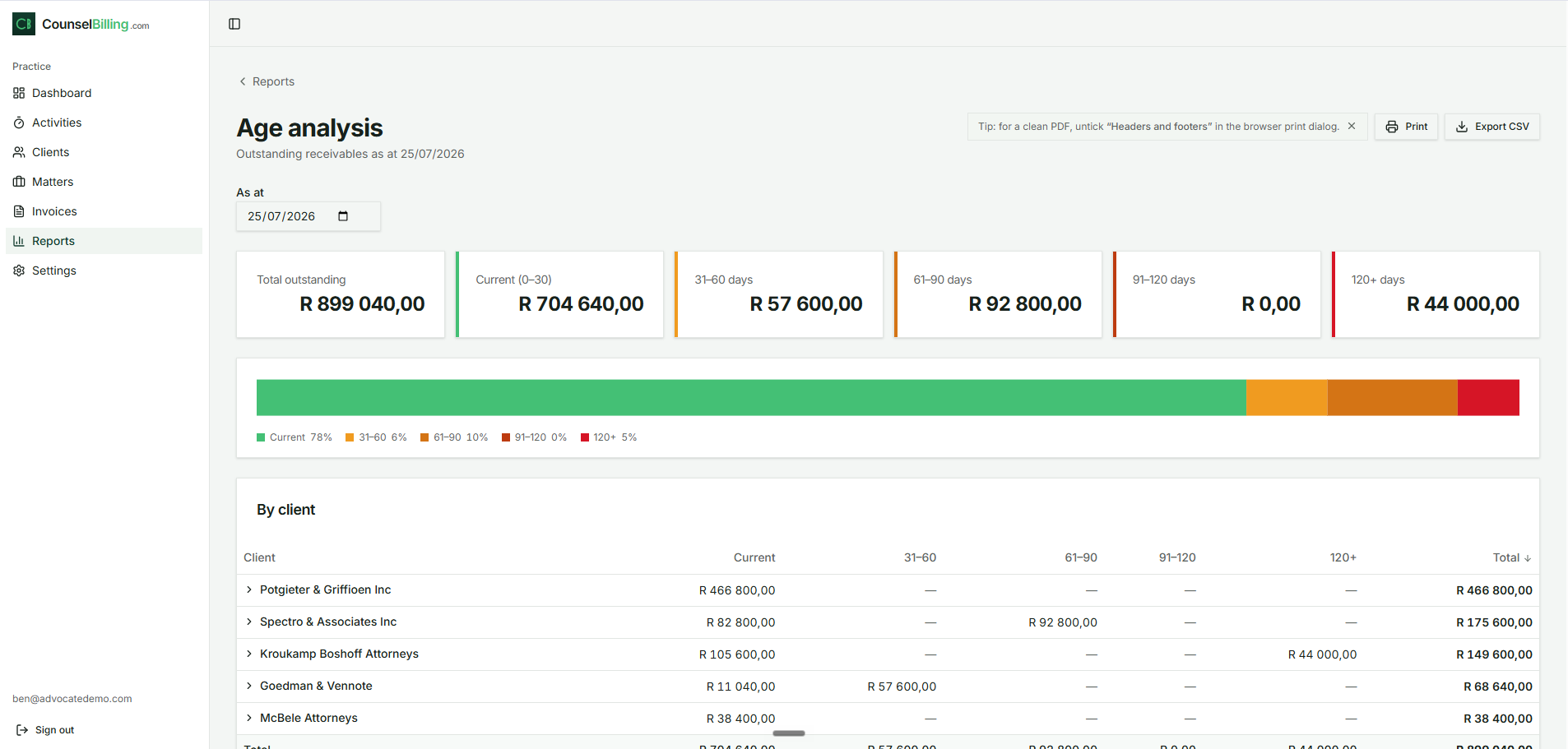
Outstanding receivables bucketed Current (0–30) / 31–60 / 61–90 / 91–120 / 120+ days, per client, as at any date you choose.
- Summary cards and a colour bar show the health of your book at a glance (green = current, shading to red at 120+).
- The By client table breaks each firm's balance into buckets — expand a row for the underlying invoices.
- Use it monthly to decide who needs a reminder before a balance ages past the point of remembering.
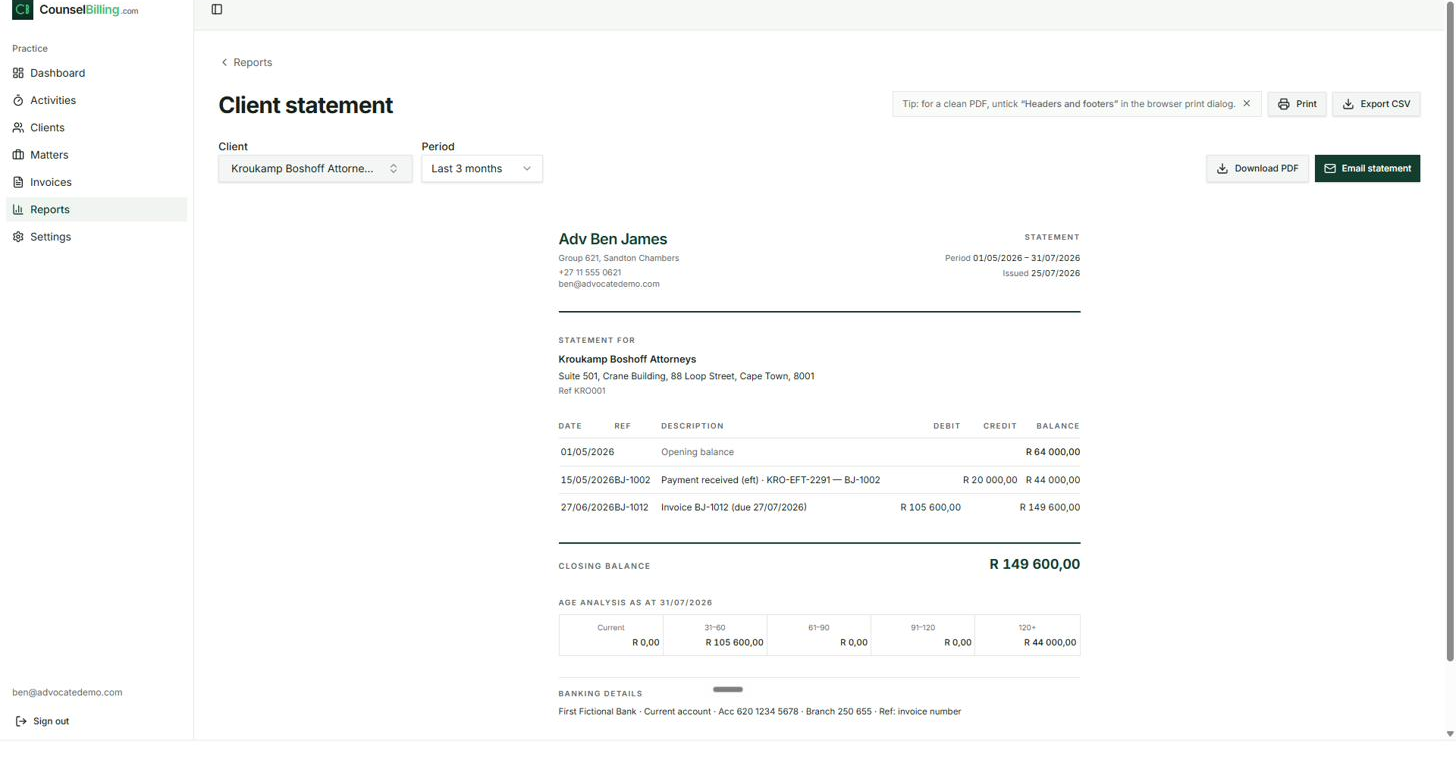
12.2 Client statement
A client-ready A4 statement for any firm and period:
- Choose the Client and Period (e.g. last 3 months).
- The statement shows an opening balance, then every invoice and payment in date order with a running balance, the closing balance, a mini age analysis, and your banking details.
- Download PDF, Print, or click Email statement to send it straight to the firm's contacts.
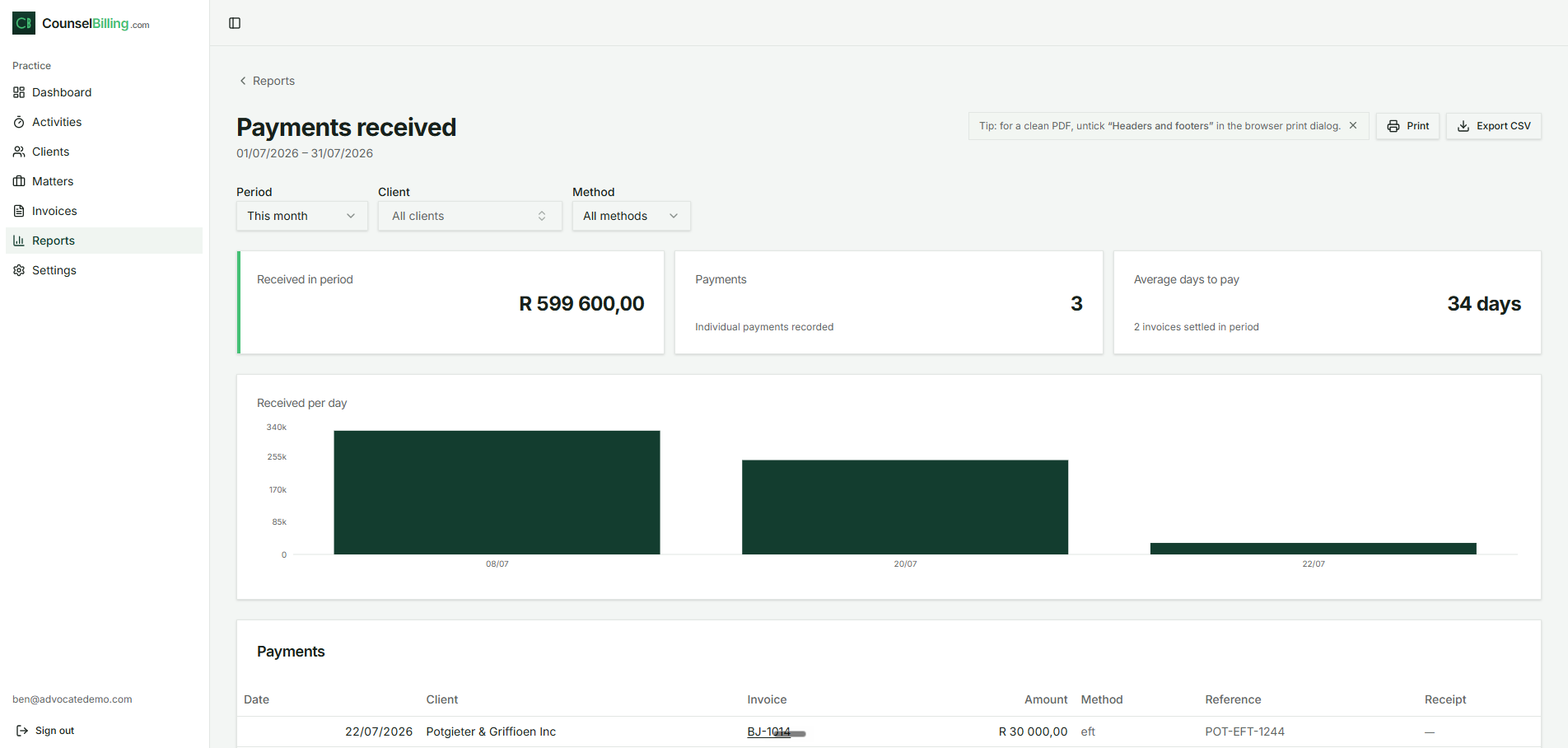
12.3 Payments received
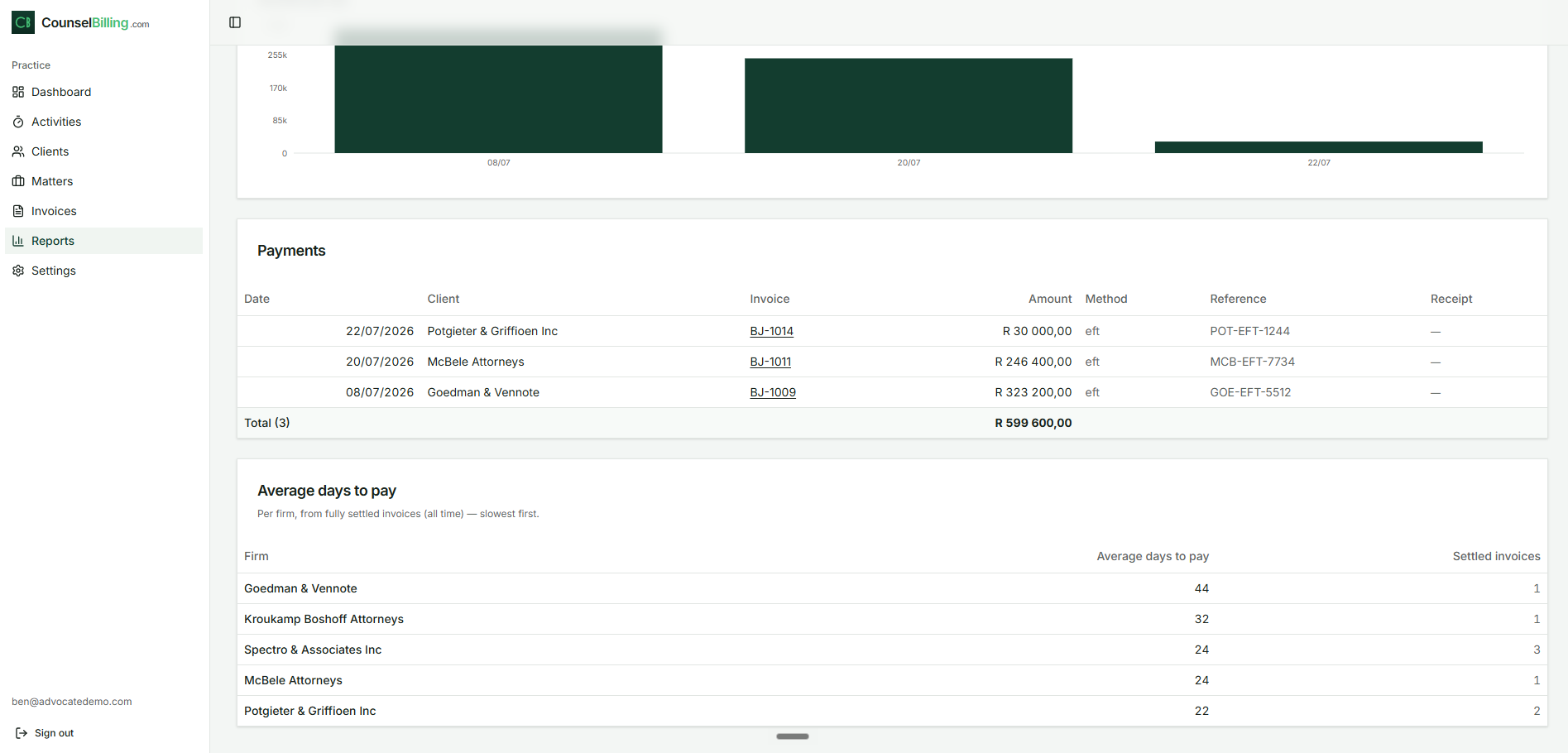
Cash-in for a period, filterable by period, client, and method:
- Cards show the amount received, the number of payments, and average days to pay.
- A received-per-day chart and a detailed table (date, client, invoice, amount, method, reference, receipt) complete the picture.
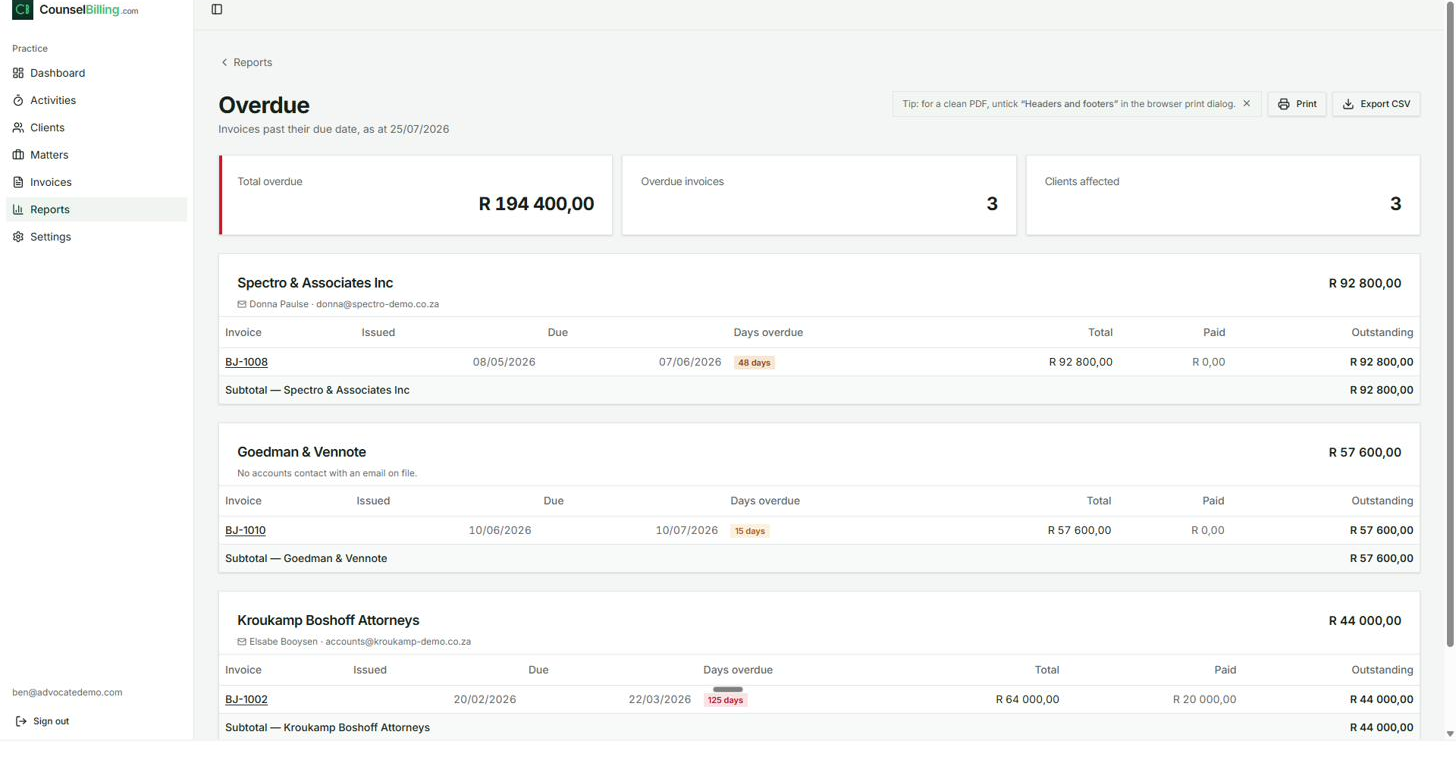
12.4 Overdue
Every invoice past its due date, grouped by client, with the follow-up contact shown at a glance:
- Cards summarise total overdue, number of overdue invoices, and clients affected.
- Each client block lists its overdue invoices with days overdue badges, amounts paid, and outstanding balances — plus the accounts contact's name and email so the follow-up email is one click away.
- If a firm has no accounts contact with an email on file, the report tells you, so you can fix the client record.
13. Automatic statements
In Settings, the Automatic statements toggle emails each client a statement on a schedule — sent to the contacts marked to receive invoices, for clients with an outstanding balance or activity in the period.
Switch it on and the polite, consistent follow-up simply happens in the background: no one has to remember to draw and send statements, and outstanding fees stop ageing quietly.
14. Tips and troubleshooting
- Clean PDFs from Print — in the browser print dialog, untick "Headers and footers" so the browser's URL and date don't print on your fee note. (The app shows this tip on invoice and report pages until you dismiss it.)
- Rates not what you expect? Check the cascade: matter override → client rate → practice default. The matter page labels which one is applying.
- Someone missing from an invoice? Recipients come from three places: the matter's responsible attorney, the client's accounts contact, and the client's firm-wide recipients — plus any per-matter extras you add. Fix it at the source (client or matter) and future invoices follow.
- Need to correct a sent invoice? Use Revert to draft, fix it, and re-approve. Use Void only when the invoice shouldn't exist at all — the number stays used, keeping your sequence auditable.
- Secretary capturing on your behalf? The Activities Captured column shows who entered each item, and the Everyone filter lets you review just your own or just theirs.
- Watching cash flow? Dashboard WIP tells you what's coming; Age analysis tells you what's stuck; Payments received → Average days to pay tells you how fast firms actually settle.
CounselBilling — Everything you need to run your billing. Nothing you don't.
Ready to run your billing?
Start your 30-day free trial — no card required, cancel anytime.